Adding KeyUser
After Logging in to KeyWin6 -
To CREATE a new user press the + on the left side next to USERS on the ADMINISTATION page.
 The plus, minus and editing pen are re-occurring functions that you use for to add, delete or edit values all through the portal.
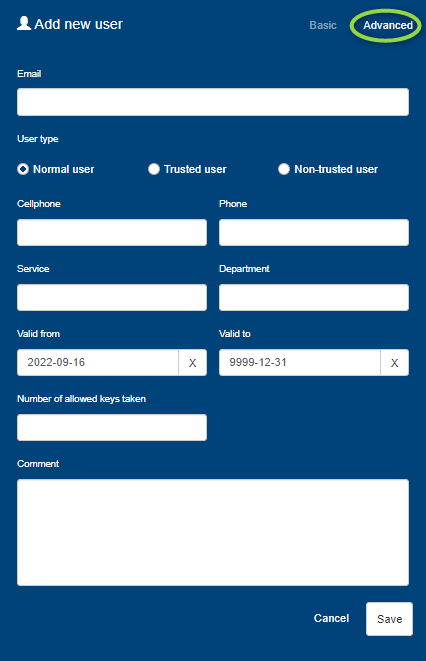
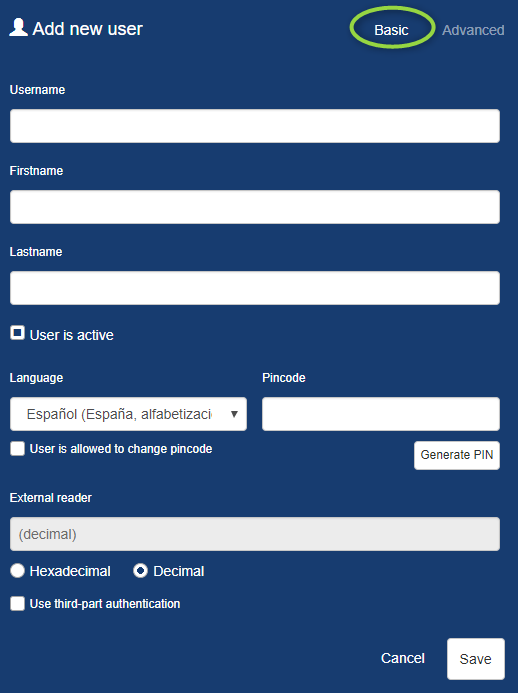
User settings are divided by BASIC settings and ADVANCED settings.
BASIC
User Name - Create a unique user name
First name - Add the users first name
Last name - Add the users last name
Active - Check if user is active/de-activated
Language - Choose the language the user wants the keybox to communicate with.
Pin code - Chose the pin code for the keybox
External reader - If the user rather use card(s)/badge(s) to log-in, enter the id number here and fill in the check-box under ”Use third-part authentication”
Hexadecimal - Uses letters and digits as a third party reader code
Decimal - Uses only digits as a third party reader code
ADVANCED
E-mail - Enter users e-mail
User type - Enter user type. Normal user is deafult. If you set the Non-trusted user, this user needs to be confirmed by an ”trusted user” for each opening of the cabinet. The confirmation is to enter a trusted users pin code.
Cellphone/Phone - Enter the users cellphone or phone. Note that cellphone will appear in the cabinet display in case this user have taken a key.
Service - Enter the service of the user.
Department - Enter the department of the users. This is also searchable in the administration
Valid from-to - Here you can set a date frame for when the user is valid.
Comment* - Here you can enter any additional information needed.
Number of allowed Keys taken - Set a value for how many keys a user can fetch
*Beware of your company’s GDPR policy when using comments and personal information